
 Connect OpenClaw
Use your Straitly key in the OpenClaw app and in the terminal (openclaw). One paste sets up both, and the models you pick show up in OpenClaw’s model menu.
- Have ready
- OpenClaw installed and curl available. The screenshots follow the Mac app; the setup command uses the shell rather than Python.
- What changes
- A separate ~/.openclaw/straitly.json file and an entry in OpenClaw's secret store. Existing settings are kept.
Keep copied keys and setup commands private.
Before you start
The command in step 3 creates a key for you, or uses one you already have. You need the OpenClaw app or openclawinstalled. You can skip the app’s setup screens: the command does that part for you.
Setup
1. Pick your models
These are the models you will see in OpenClaw. The first one is picked when it opens.
Price per million tokens, input / output. Only models that can run OpenClaw are listed.
2. Open Terminal
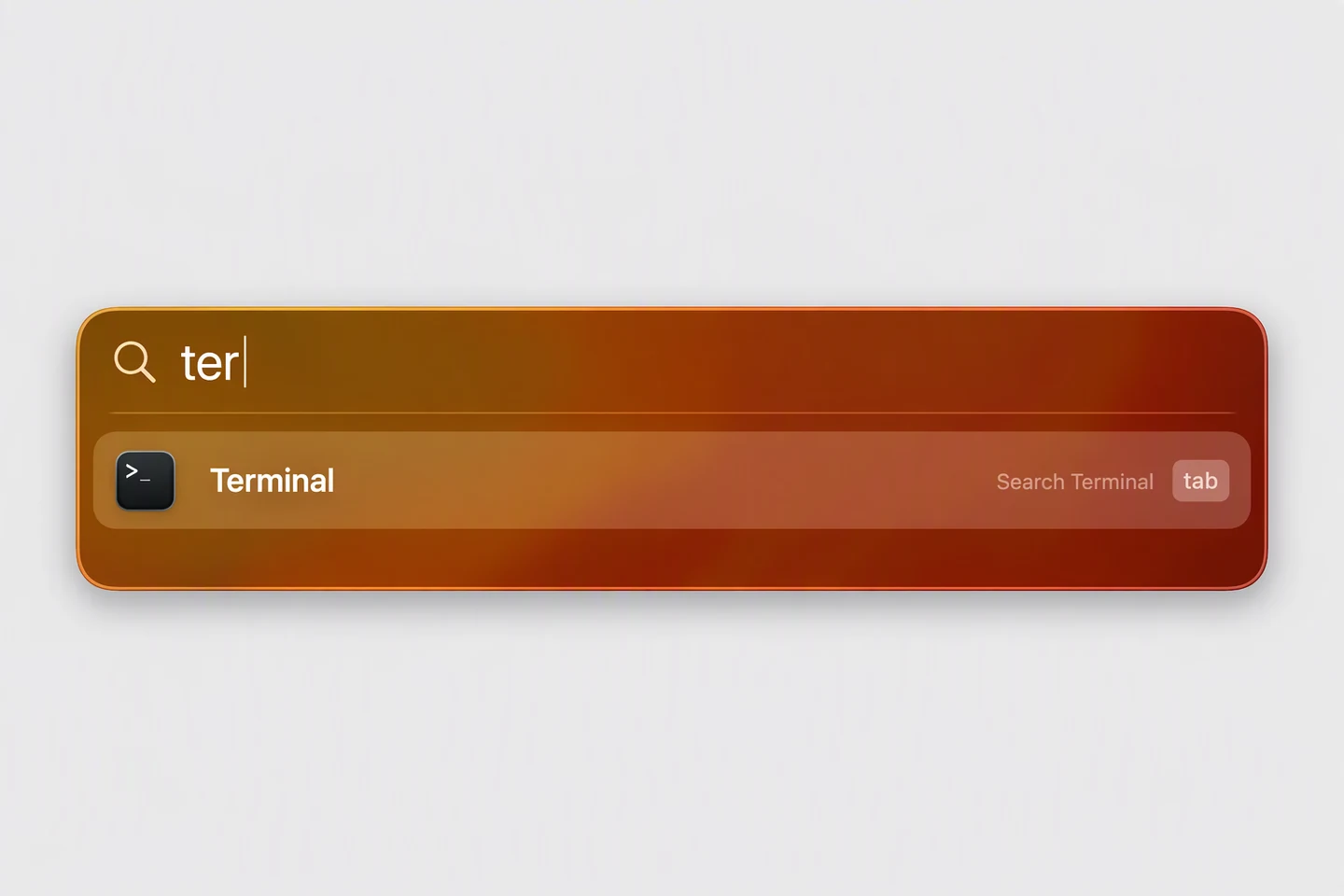
Press ⌘ Space, type Terminal and press Enter.
3. Paste the command
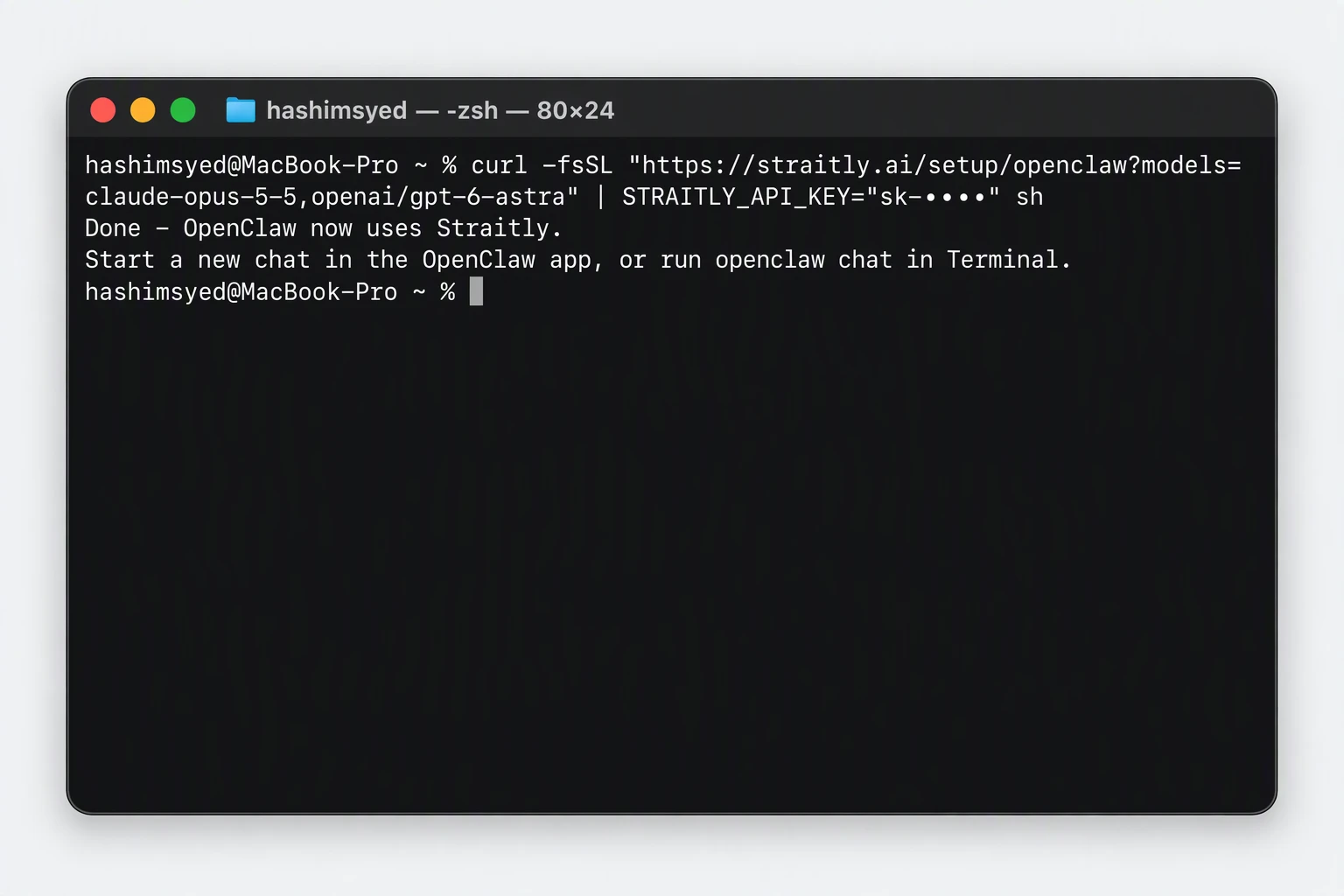
Copy it, paste it into Terminal and press Enter. You should see Done - OpenClaw now uses Straitly.
It puts Straitly in its own file, ~/.openclaw/straitly.json, and keeps the rest of your OpenClaw settings. Your key goes into OpenClaw’s secret store, not into a file. It works right away. If you only just installed the OpenClaw app, it also finishes the app’s setup, which takes about a minute.
4. Open OpenClaw
Open the OpenClaw app. It goes straight to a chat, with your first model picked. In the terminal, run the command the paste printed at the end, usually openclaw chat.
5. Pick a model
Click the model name under the message box. Your models are in the Straitly group. In the terminal, type /model instead.
6. Send a message
Say anything. If OpenClaw answers, you are done.
Seeing the thinking
The command turns on OpenClaw’s reasoning setting, so when a model thinks, its thinking arrives as a separate message. In the app, also turn on View → Reasoning.
Agent run failed, and later messages in that chat can fail too. Reasoning is already on. If a chat keeps failing, start a new one with /new.Change your models later
Pick again in step 1 and paste the new command. It replaces the list and works right away. Every id is on the models page.
Verify your connection
Open the app or run the chat command printed by setup. Choose a Straitly model, send a short message, and check Straitly Activity.
Open request activity to check the model, status, and charge for your test request.
Setup checks
This is a fresh app installation
Let setup finish. Completing the app's initial setup can take about a minute; wait for the Done message before opening a chat.
A Claude conversation keeps failing
See the reasoning warning above. Do not send /reasoning on to Claude; use a new chat with /new if that conversation keeps failing.
If the request is rejected, check your balance and key limits in Errors & limits.
Undo
This takes Straitly out of OpenClaw, puts back the model you used before and leaves the rest of your settings as they are:
curl -fsSL https://straitly.ai/setup/openclaw | STRAITLY_UNDO=1 sh