
 Connect Claude Code
Use your Straitly key inside Claude Code in the terminal. One paste sets it up, and the models you pick show up in Claude Code’s model menu.
- Have ready
- Claude Code installed and python3 available in your terminal. The screenshots follow macOS.
- What changes
- The gateway connection and model picker in ~/.claude/settings.json. Existing settings are backed up on the first run.
Keep copied keys and setup commands private.
Before you start
The command in step 3 creates a key for you, or uses one you already have.
Setup
1. Pick your models
These are the models you will see in Claude Code. The first one is picked when it opens.
Price per million tokens, input / output. Only models that can run Claude Code are listed.
2. Open Terminal
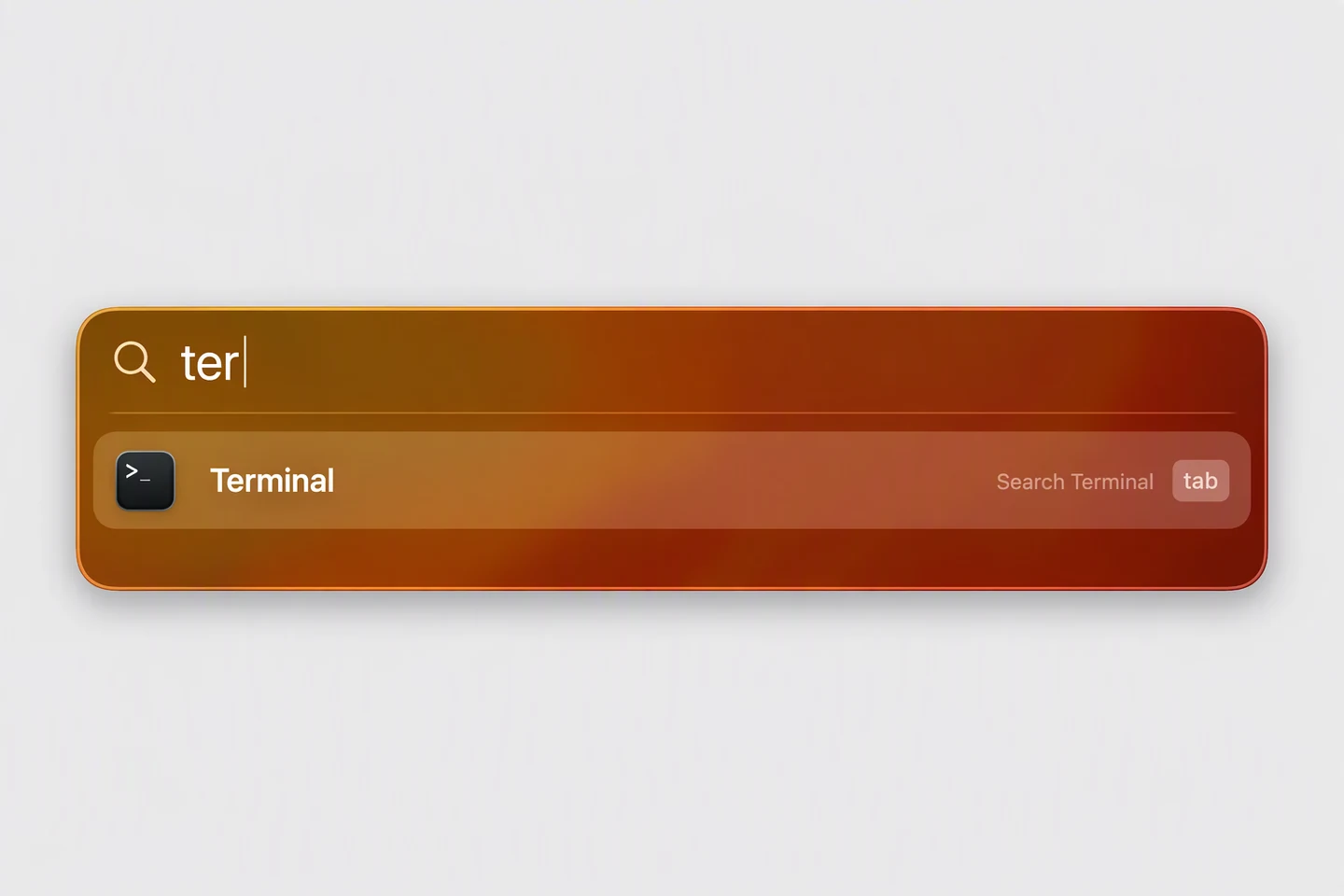
Press ⌘ Space, type Terminal and press Enter. Use your normal terminal, not a chat inside Claude Code.
3. Paste the command
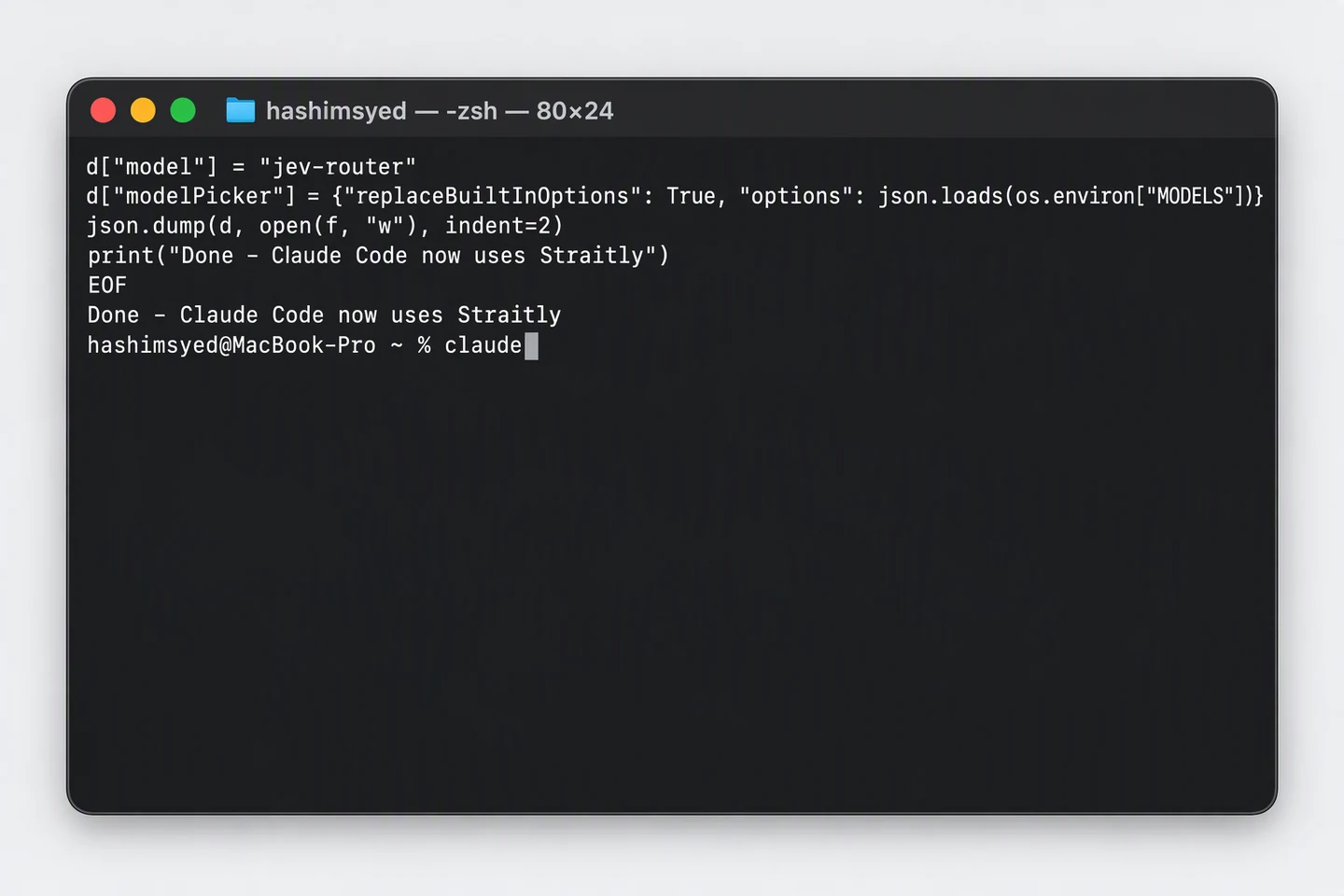
Copy this, paste it into Terminal and press Enter. It keeps your other Claude Code settings. You should see Done - Claude Code now uses Straitly.
4. Start Claude Code
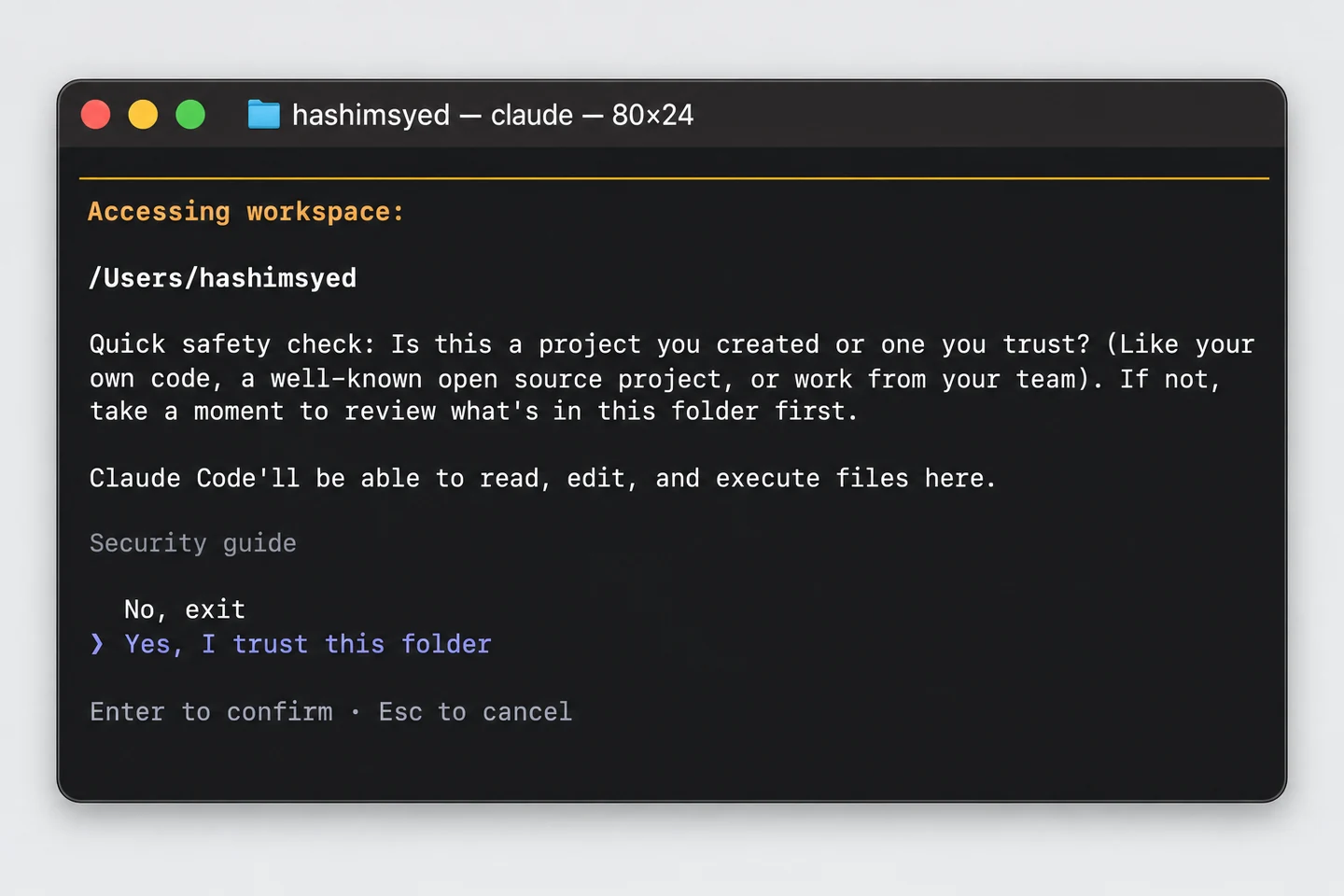
Type claude and press Enter. The first time, it asks whether you trust the folder. Choose Yes, I trust this folder.
5. Pick a model
Type /model and press Enter. Your models are listed. Move with the arrow keys and press Enter to choose one.
6. Send a message
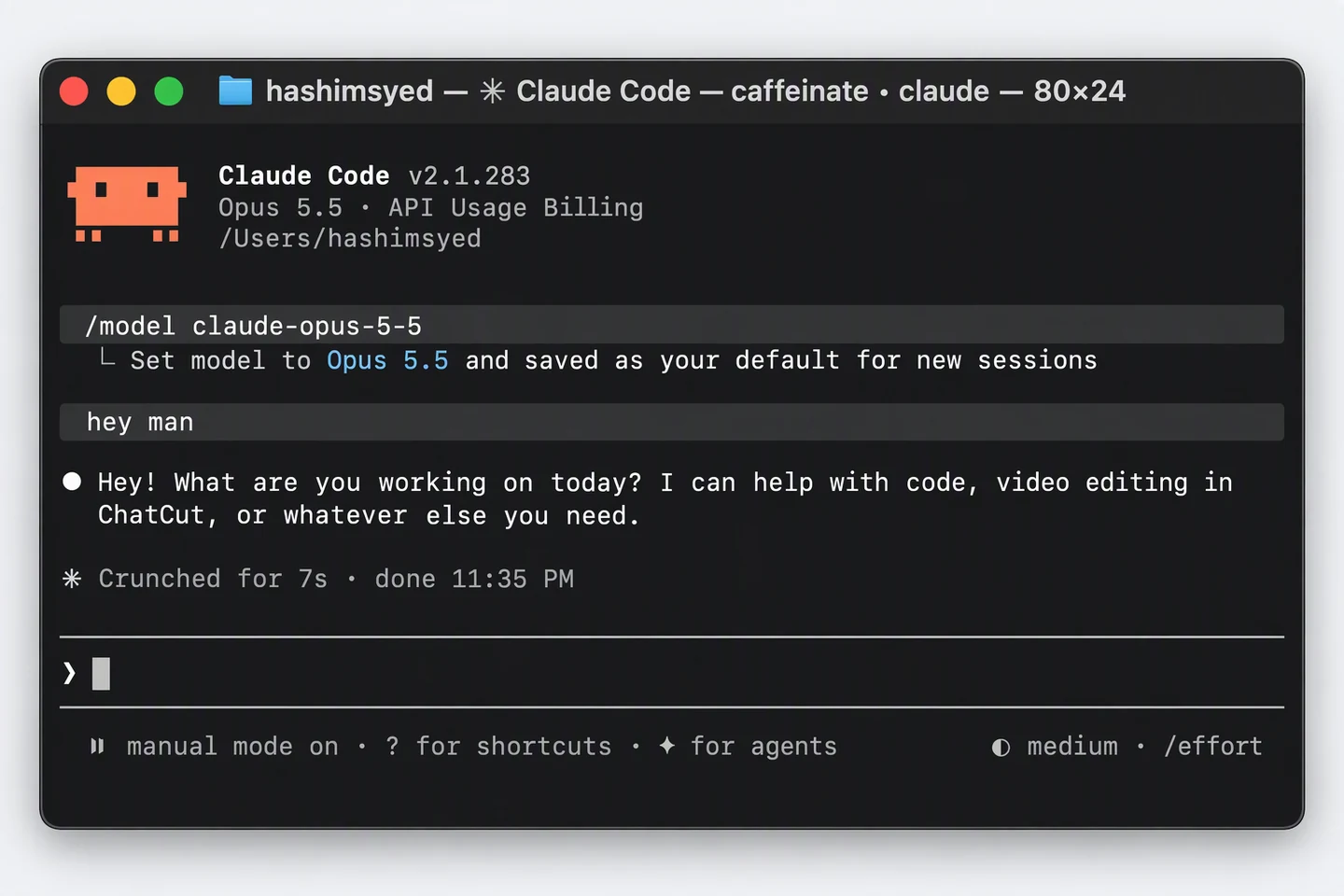
Say anything. If Claude Code answers, you are done.
Change your models later
Pick again in step 1 and paste the new command. It replaces the list. To try one model without changing the list, type /model with its id, for example /model z-ai/glm-5.3. Every id is on the models page.
Verify your connection
Start Claude Code, open /model, choose one of your models, and send a short message. Confirm the request in Straitly Activity.
Open request activity to check the model, status, and charge for your test request.
Setup checks
python3: command not found
Install Python 3, reopen your terminal, then run the setup command again. Paste the command in your terminal, not in a Claude Code chat.
Your model list has not changed
Confirm the terminal printed the Done message, then exit and reopen Claude Code. Check /model again.
If the request is rejected, check your balance and key limits in Errors & limits.
Undo
The first paste saves a copy of your old settings. To go back, run:
cp ~/.claude/settings.json.before-straitly ~/.claude/settings.json
If you had no Claude Code settings before, delete ~/.claude/settings.json instead.