
 Connect Claude app
Use your Straitly key in the Claude desktop app, in both Cowork and Code. One paste connects it, and every Straitly model shows up in Claude’s model menu.
- Have ready
- The Claude desktop app installed on a Mac. Finish or save your current work before setup restarts the app.
- What changes
- Claude's third-party gateway configuration for Cowork and Code. The script quits Claude and opens it again.
Keep copied keys and setup commands private.
Before you start
You need the Claude app on a Mac. The command below creates a key for you, or uses one you already have.
Setup
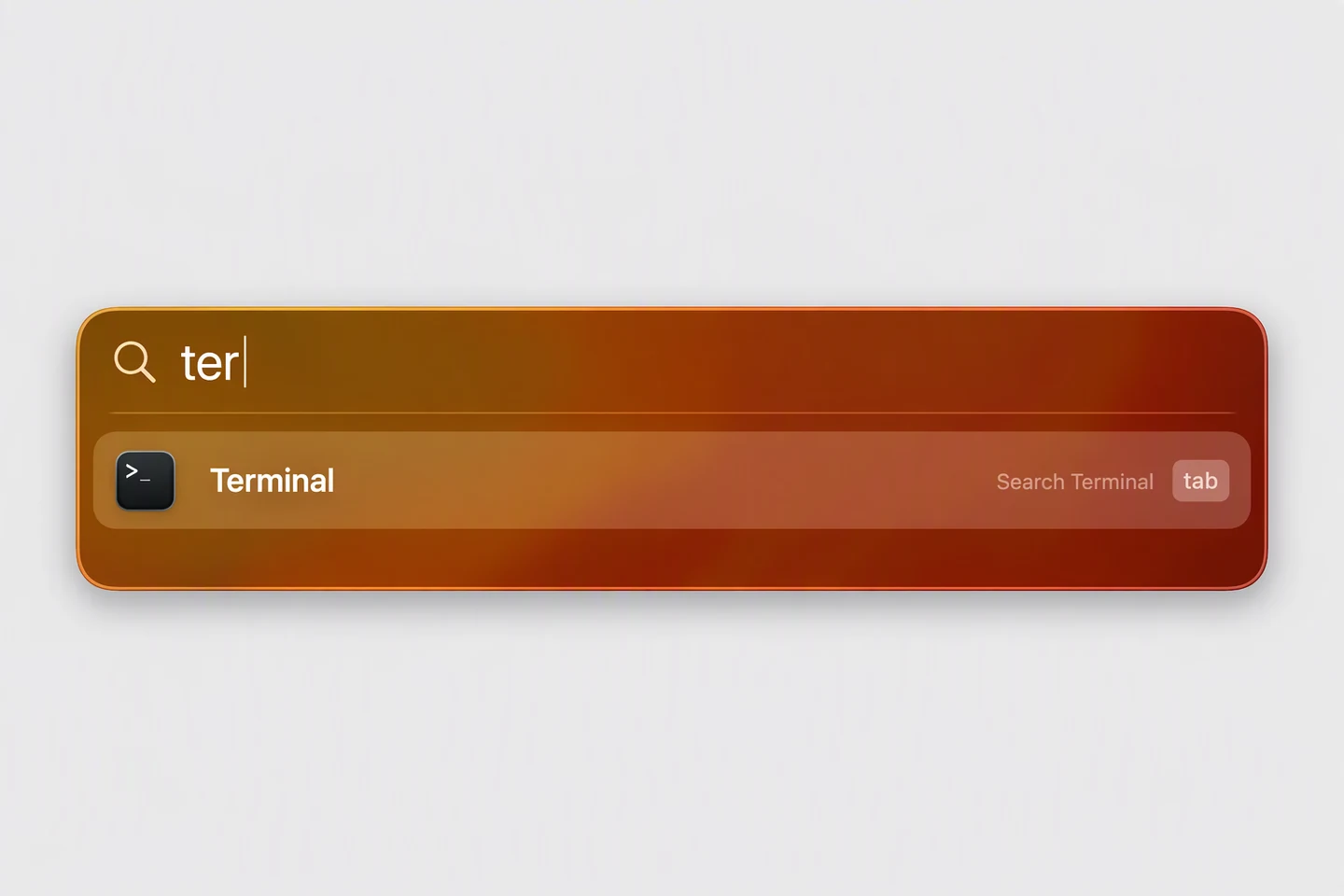
1. Open Terminal
Press ⌘ Space, type Terminal and press Enter.
2. Paste the command
Copy it, paste it into Terminal and press Enter. It quits Claude, connects it to Straitly and opens it again. You should see Done - Claude now uses Straitly.
3. Send a message
To choose a model, click the model name next to the send button. Say anything. If Claude answers, you are done.
Code uses the same connection. Switch to Code at the top left and it works there too.
Good to know
- Small Claude Haiku 4.5 requests in Activity are Claude writing chat titles. They cost a fraction of a cent each.
Prefer clicking? Set it up in Claude’s menus
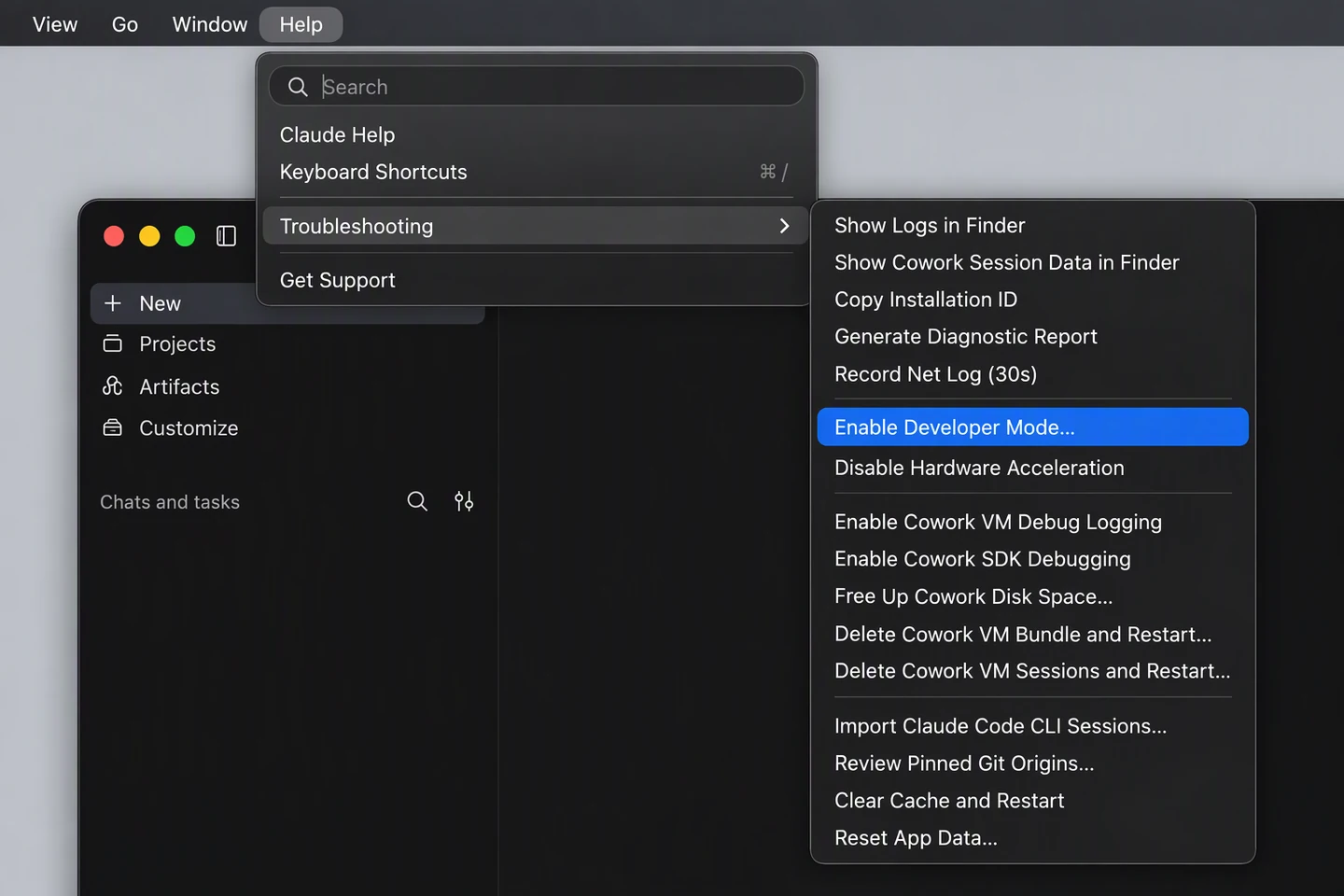
1. Turn on Developer Mode
Open Help → Troubleshooting → Enable Developer Mode… and click Enable. Claude restarts on its own.
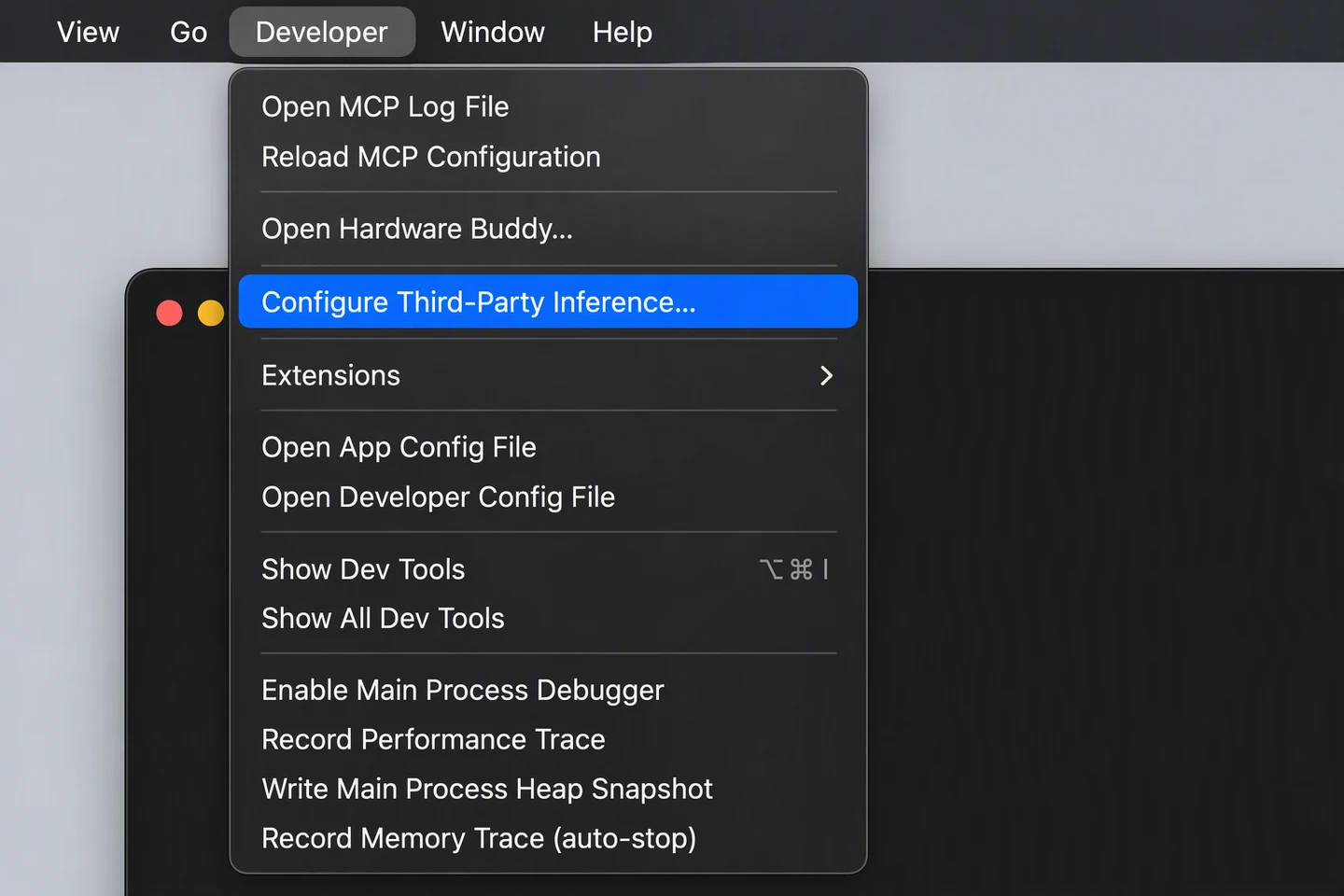
2. Open the gateway settings
Open Developer → Configure Third-Party Inference…
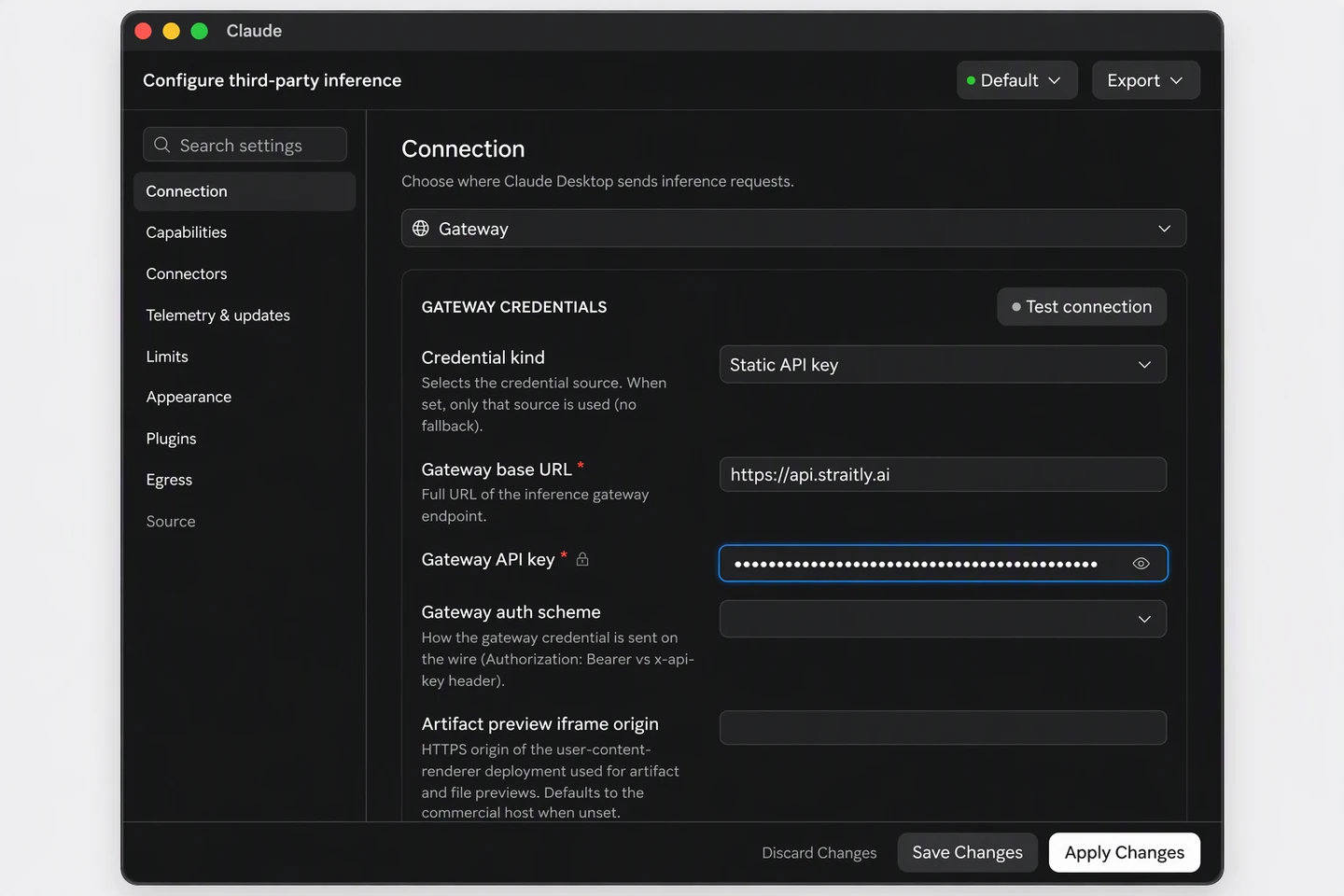
3. Connect Straitly
Under Connection, choose Gateway. Set Credential kind to Static API key, paste the URL below into Gateway base URL and your key into Gateway API key. Leave everything else as it is.
/v1 on its own. With /v1 at the end, every request goes to /v1/v1 and fails with a 404.Righthttps://api.straitly.aiWronghttps://api.straitly.ai/v1https://api.straitly.ai
4. Apply and restart
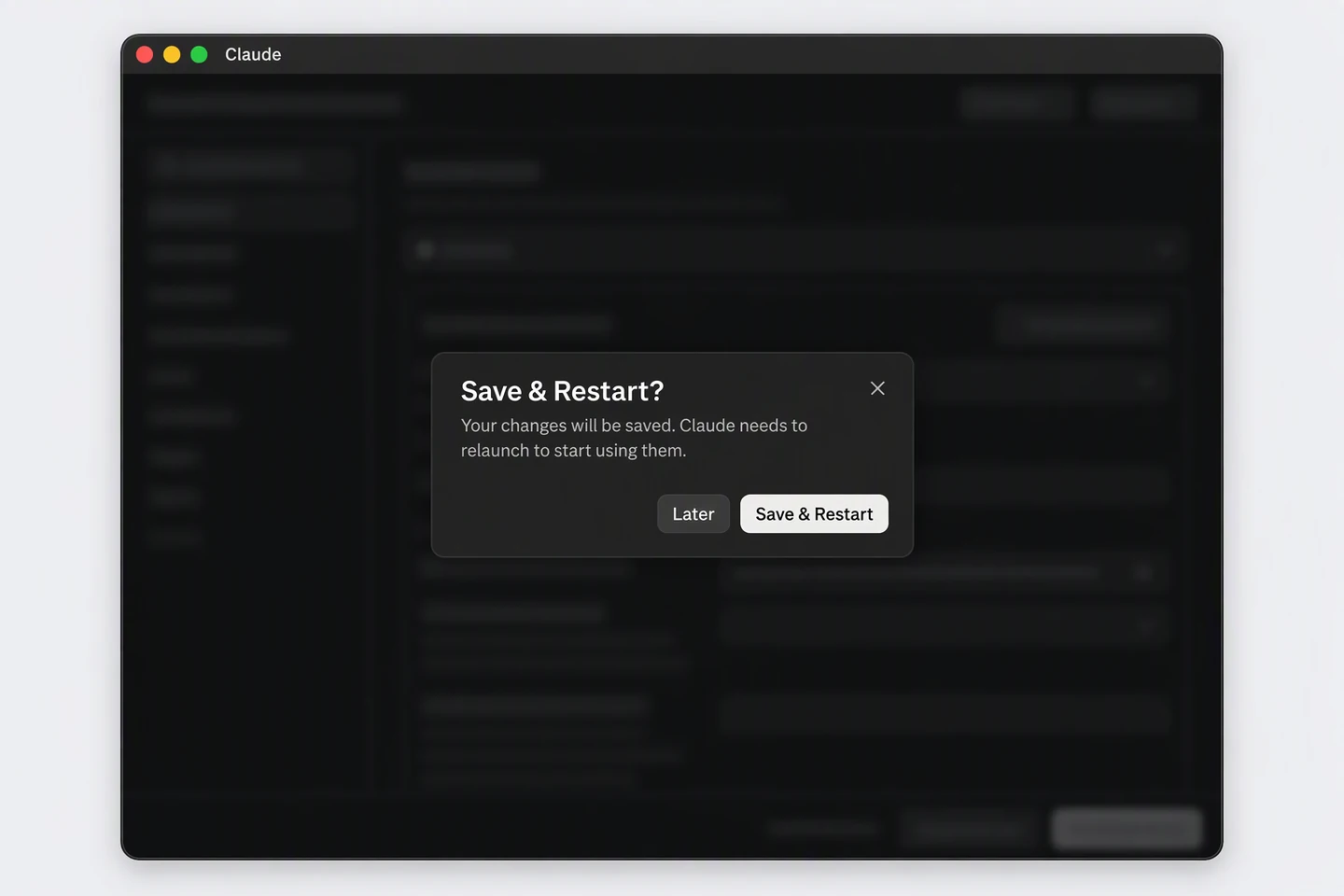
Click Apply Changes, then Save & Restart. Then send a message as in step 3 above.
If something is wrong
- “Couldn’t sign in to Gateway”. The key is wrong or was just created. Wait 20 seconds and click Check again, or paste the command again.
- Every message fails with a 404. The base URL ends in
/v1. Remove it, then apply and restart. - No Straitly models in the menu. Quit Claude with ⌘ Q and open it again. Closing the window is not enough.
Verify your connection
Choose a Straitly model in the app and send a short message. Confirm the request in Straitly Activity; Code uses the same connection.
Open request activity to check the model, status, and charge for your test request.
Setup checks
Setup cannot restart Claude
Quit Claude completely with Command-Q, then run the command again. Closing a window alone does not quit the app.
Using the manual setup instead
Follow the expandable menu guide above. Use the gateway root without /v1; Claude adds that part itself.
If the request is rejected, check your balance and key limits in Errors & limits.
Undo
This puts Claude back to how it was before Straitly:
curl -fsSL https://straitly.ai/setup/claude-app | STRAITLY_UNDO=1 bash